Dear Parents and Guardians, stay connected! Sign up for our newsletter to be the first to know when Math Fun with Uka and Azu: Fluency Foundation is released.
How to Use the Drawing App
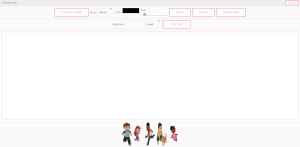
Tap Open Drawing App.
You start in ✎ Draw Mode. Pick a Brush, Color, and Size, then draw with your finger, stylus, or mouse.
Add a sticker: tap a sticker picture.
To move/resize it, switch to ▣ Select/Move Mode, drag it around, and use the little corner square to make it bigger or smaller.
Switch back to ✎ Draw Mode to draw on top of stickers.
Add text: type in the box and press Add Text.
Double-click the text to edit it.
Use ▣ Select/Move Mode to move or resize the text box.
Undo goes back one step. Clear wipes the board.
Download saves your picture. Close goes back to the page.
Quick Tool Guide
✎ Draw Mode: draw on the board (and over stickers/text).
▣ Select/Move Mode: move or resize stickers and text.